Guide · JS Jobs
Update JS Jobs to a new version
New versions install from the JS Jobs admin, with the same activation key you used to upgrade. JS Jobs checks once a day and tells you when one is out.
Before you start
- An active JS Jobs Pro plan. Each plan includes a year of new versions.
- A fresh backup of your site.
- See what changed in the JS Jobs changelog.
See that a new version is out
Open Components›JS Jobs. When a new version is ready, the dashboard shows JS Jobs (version) is available. Click it.
Check with your key
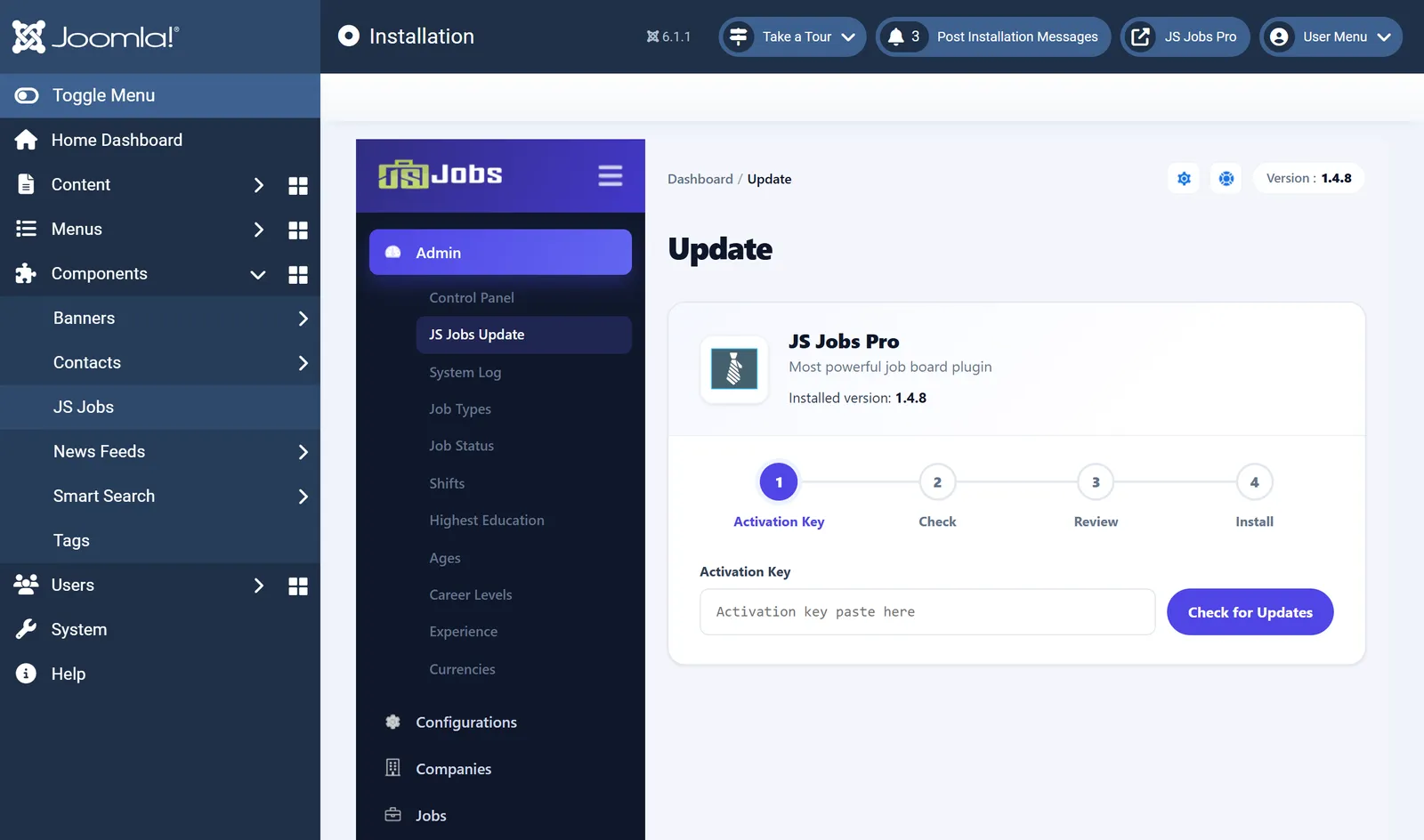
On JS Jobs Update, paste your activation key if the field is empty and click Check for Updates.

The same screen you used to upgrade to Pro. Update now
Click Update Now. The installer replaces the extension’s files and updates the database. Keep the window open until it finishes. Your content and settings stay.
Good to know
- Already on the latest version? JS Jobs says so. If files were damaged or an update stopped part-way, the same screen offers Repair, which installs the current version again.
- Your plan is about to end. The dashboard warns you 30 days before. Renew to keep updates without a gap.
- Your plan has ended. JS Jobs keeps working on your site; only new versions and support stop until you renew.